LenelS2 Elements
Integration Guide
This integration connects Sine with LenelS2 Elements, enabling visitor and access data to flow between the two platforms so that visitor credentials can be managed directly through your access control system. It allows system integrators to synchronize visitor management workflows with physical access permissions, reducing manual credential handling and improving site security. This guide is intended for system integrators and IT administrators configuring the connection between Sine and LenelS2 Elements.
Overview
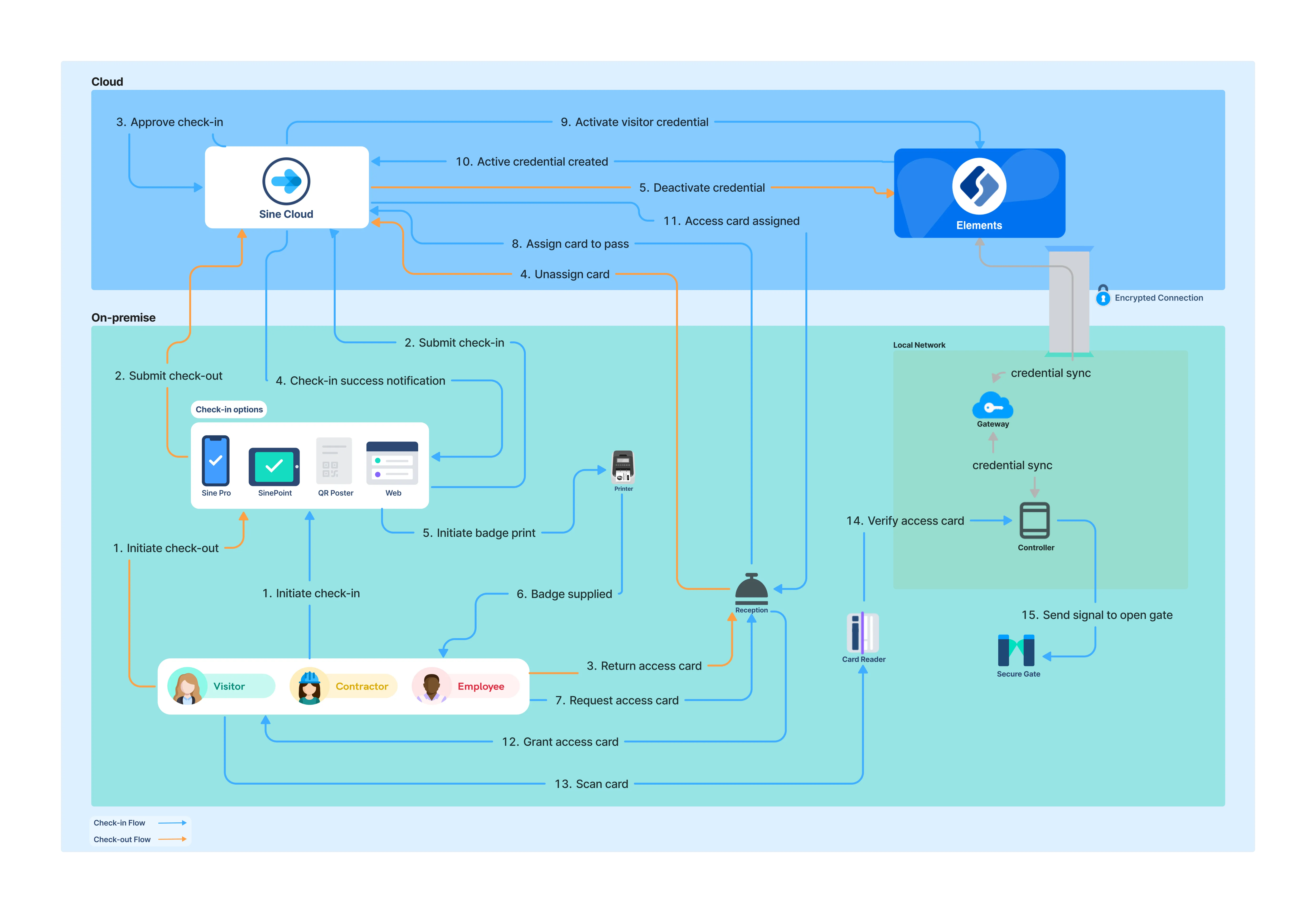
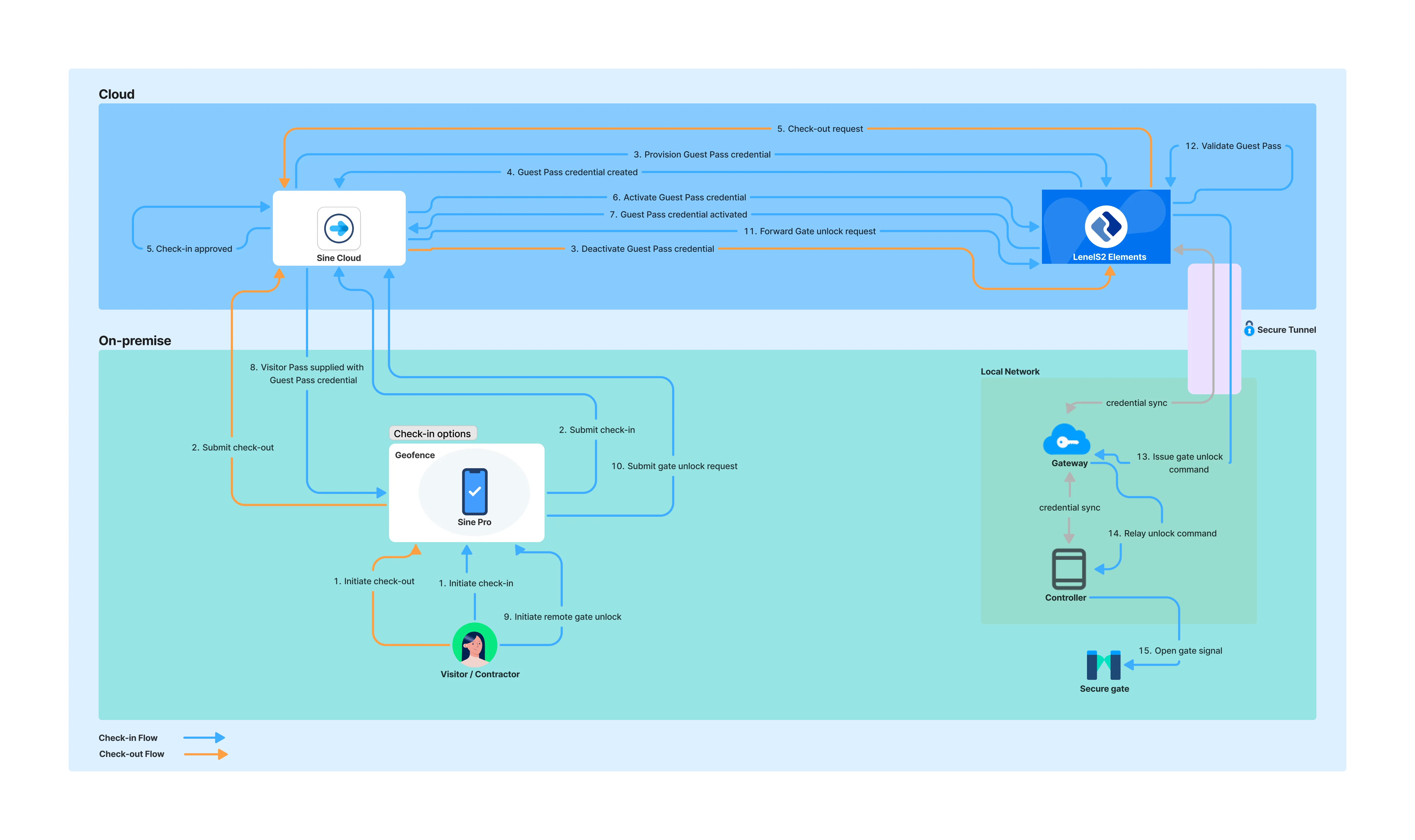
Sine connects with LenelS2 Elements over a direct cloud-to-cloud connection to automatically provision and revoke visitor and contractor access credentials. The integration supports Sine QR Codes printed on visitor badges or sent via SMS, physical cards such as HID proximity cards managed as assets in Sine and assigned to visitors on check-in, and Guest Pass credentials that let visitors open doors remotely with a tap of a button via the SinePro mobile app.
How It Works
Sine connects to LenelS2 Elements via a cloud-to-cloud integration, allowing visitor credentials to be provisioned, activated, and revoked directly within LenelS2 Elements as visitors check in and out through Sine.
Select your preferred check-in method below.
Visitors are issued a Sine QR Code credential that can be scanned at compatible readers connected to LenelS2 Elements.
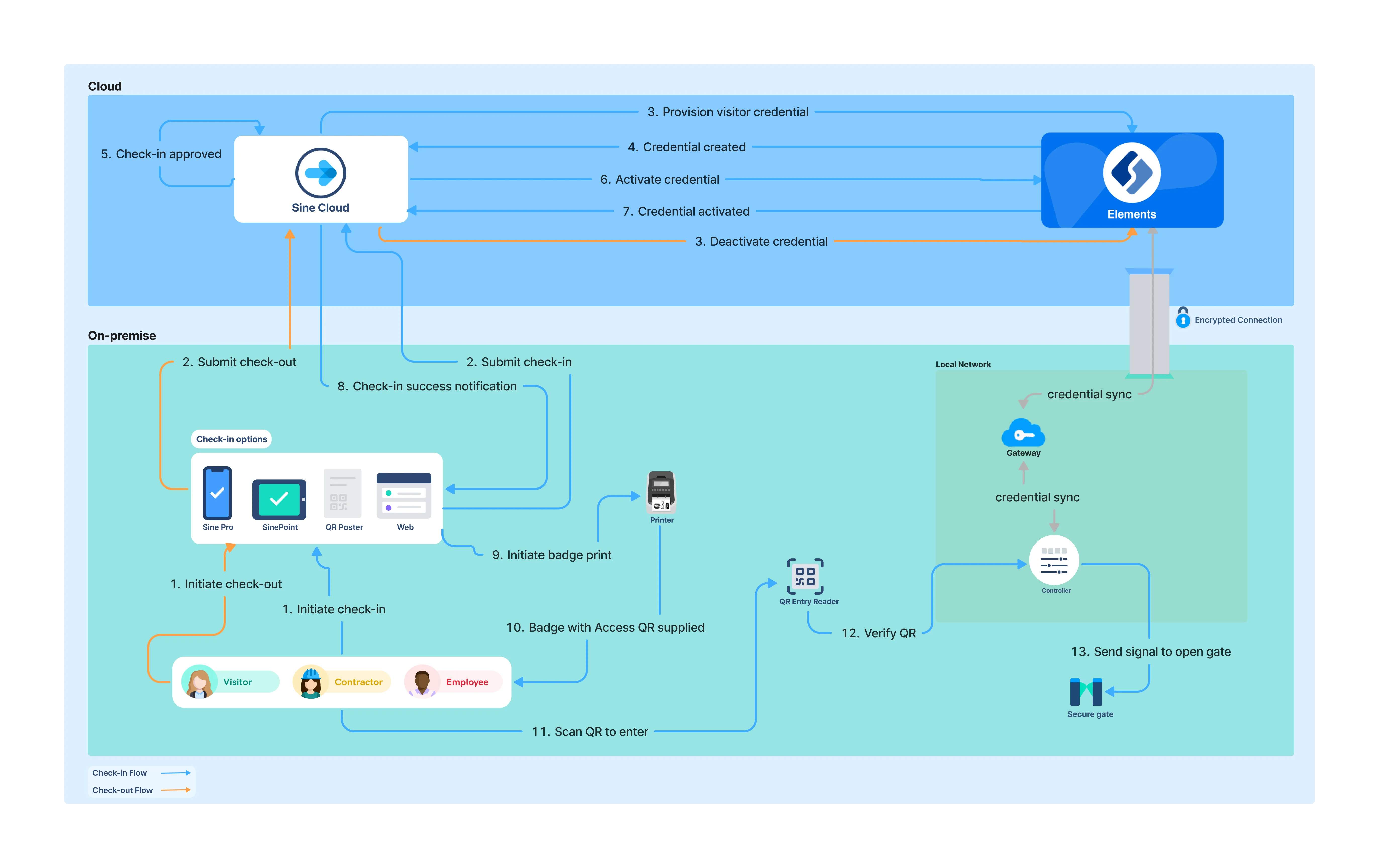
Check-in Flow:
The visitor initiates check-in through Sine, using a kiosk, the mobile app, a web form, or a printed QR poster.
Sine provisions a unique QR code credential, scoped to the visitor's assigned access groups for the duration of their visit.
Once the visit is approved following security and compliance checks, Sine activates the QR code credential in LenelS2 Elements.
The QR code is delivered to the visitor via SMS or displayed on their badge.
The visitor presents the QR code at a reader with QR/barcode scanning support, and the door unlocks.
Check-out Flow:
The visitor checks out through the Sine app, at a kiosk, by notifying a host, or automatically upon exiting the geofence area.
Sine revokes the QR code credential in LenelS2 Elements, preventing any further entry attempts with that code.
Requirements
Sine Requirements
- Integration enablement: You need a Sine subscription with the LenelS2 Elements integration enabled. Additional fees may apply.
LenelS2 Elements Requirements
- Elements subscription: You need an active LenelS2 Elements cloud subscription.
- API License: You need a LenelS2 Elements API license to enable communication between Sine and Elements.
- QR Reader: If you plan to use QR codes for access, you need compatible QR access readers. Confirm reader compatibility with LenelS2 or your Access Control Integration Partner. A reader similar to this one is suggested.
- Credential pool: If you plan to use physical access cards, you need an available credential pool to assign to visitors.
- Testing environment: You need a sandbox environment or another safe testing space to validate the integration before deploying it to production.
Configuration
LenelS2 Elements Configuration
People Group Setup
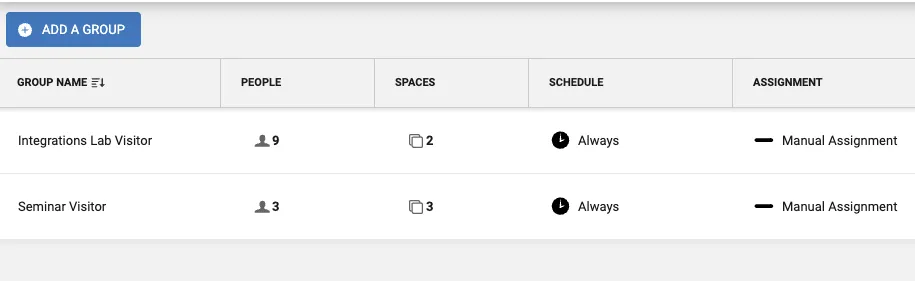
- People groups — In the LenelS2 dashboard, create people groups and assign spaces to each group. When you assign a visitor to a group, the visitor inherits the access permissions configured for that group. You can assign a visitor to multiple groups.
Sine Configuration
General Setup
Admin permissions — Ensure you have Team or Site Admin permissions. These permissions are required to configure integrations.
Log in — Log on to the Sine admin dashboard at https://dashboard.sine.co.
Select site — Navigate to the Locations tab and click on the site you want to configure the integration for.
Add integration — In the Site menu, click Integrations. Click Add integration and select LenelS2 Elements from the list of available integrations. If the integration does not appear in the list, contact support.
Name integration — Enter a name for the integration. You can choose any name, but select something that helps you identify the integration's purpose.
Connect to LenelS2 Elements
Connection Method
- Cloud to cloud: This integration uses a direct cloud-to-cloud API connection between Sine and the vendor platform. No on-premise infrastructure is required.
Authentication
API Key — Enter your LenelS2 Elements API Key and your External ID. The External ID can be any value.
Test Connection — Click Test connection to confirm that your configuration is correct. Once Sine successfully verifies the connection to your LenelS2 Elements account, the Integration Settings section becomes available.
Integration Settings
Credential Configuration
Controls the type of access control credential generated when the integration runs.
Select your preferred credential type below.
Generates and attaches a QR code to a visitor's pass. The integration runs when a pass is created, when a pass expires, or when the visitor checks out.
Send QR Code by SMS — If the visitor's mobile number is available, send them a QR code credential by SMS. This can serve as a useful backup to a badge printer.
Provision credential on check-in — Select one or more visitor types for which the integration should provision credentials in your access control system when visitors check in using Sine. Ensure that the Host Selection Required checkbox is enabled for any visitor types used in access control integrations. Without this setting, visitors would receive access credentials without host approval. You can review which visitor types have Host Approval Required enabled on the General tab of your site settings.
Grace Period — A visitor may check out using Sine before leaving the location and may still need their credentials to exit. Set a grace period to ensure access control credentials are not deprovisioned immediately after the visitor is checked out in Sine.


Basic Configuration
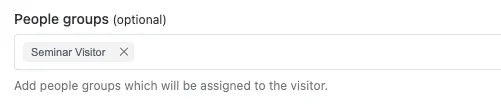
- People groups — Select the people groups to be assigned to the visitor. You can create people groups in the LenelS2 dashboard.
Messages
- Visitor failure message — Enter the message to be displayed to the visitor if the access control integration fails for any reason.
Notifications
- Send integration failure notifications — Enter one or more email addresses to be notified if the integration fails, including the corresponding failure details.
Testing
Create a test check-in — Create a test visitor check-in using a visitor type configured for the integration.
Verify credential provisioning — Verify that the visitor profile is created in the vendor system and that credentials are provisioned correctly.
Test credential access — Test the credential at a compatible reader to ensure access is granted.
Verify credential revocation — Check out the test visitor and verify that access credentials are revoked after the configured grace period.
Check failure notifications — Monitor the integration failure notifications to ensure they are working correctly.
Need help? Contact Sine Support at [email protected]