Honeywell Pro-Watch
Integration Guide

This integration connects Sine with Honeywell Pro-Watch, allowing visitor and access data to flow between the two platforms so that visitor credentials can be managed alongside your existing access control infrastructure. It enables system integrators to configure a unified workflow for visitor management and physical access control. This guide is intended for system integrators, IT administrators, and technical support staff responsible for configuring and maintaining the integration.
Overview
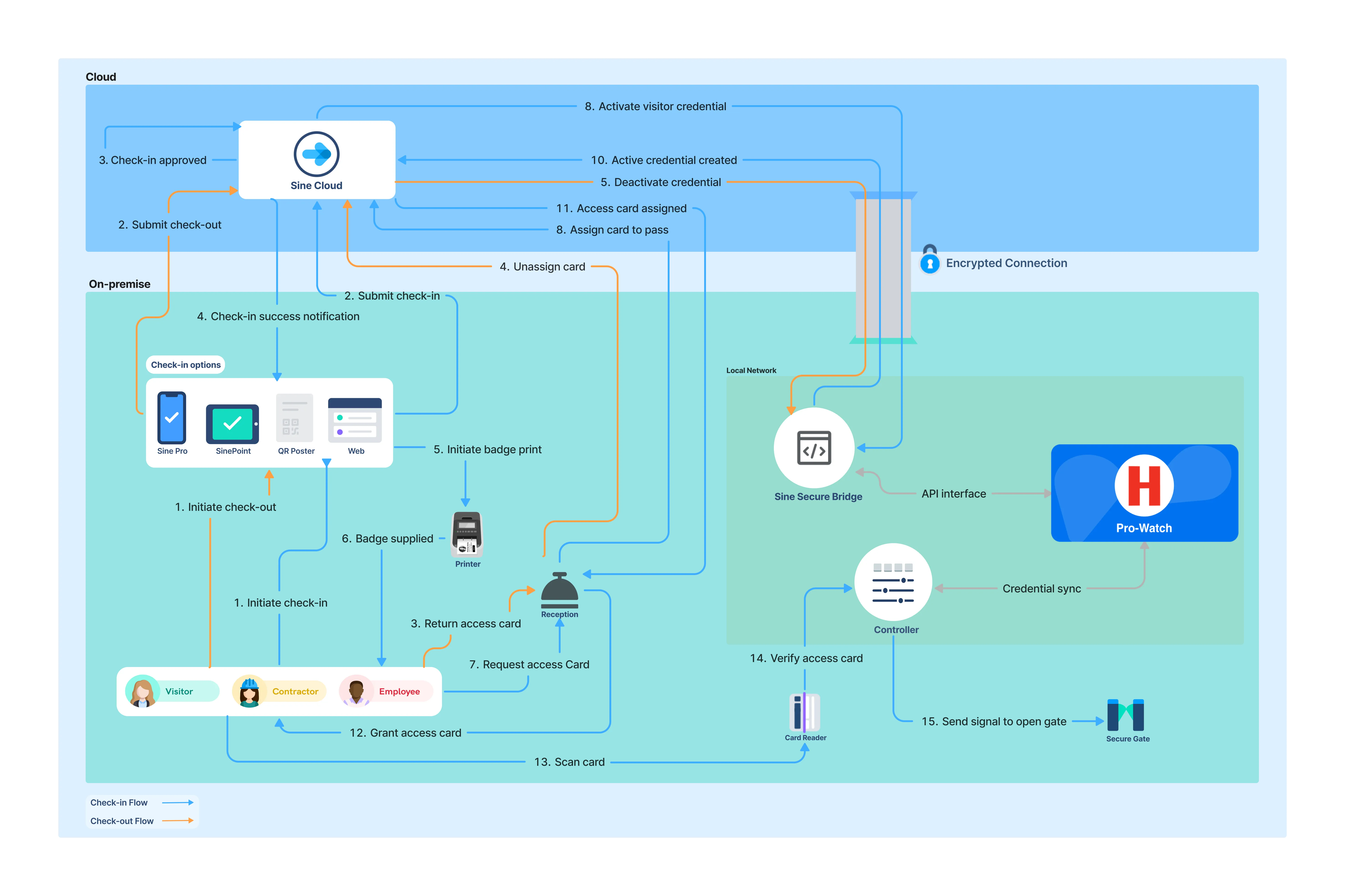
Sine connects with Honeywell Pro-Watch to automatically provision and revoke visitor access credentials, with simplified connectivity via Sine Secure Bridge for on-premise deployments. The integration supports Sine QR Code credentials, which assign access via QR codes printed on visitor badges or sent via SMS, and Physical Assets credentials, which let you manage physical cards such as HID proximity cards in Sine and assign them to visitors on check-in.
How It Works
Sine integrates with Honeywell Pro-Watch to synchronize visitor credentials with your on-premise access control infrastructure. When a visit is approved in Sine, credentials are provisioned or revoked directly in Honeywell Pro-Watch, ensuring that door access is automatically scoped to the visitor's assigned access groups and visit duration.
Select your preferred check-in method below.
Visitors are issued a Sine-generated QR code credential that can be scanned at compatible Honeywell Pro-Watch readers to unlock doors without requiring a physical card.
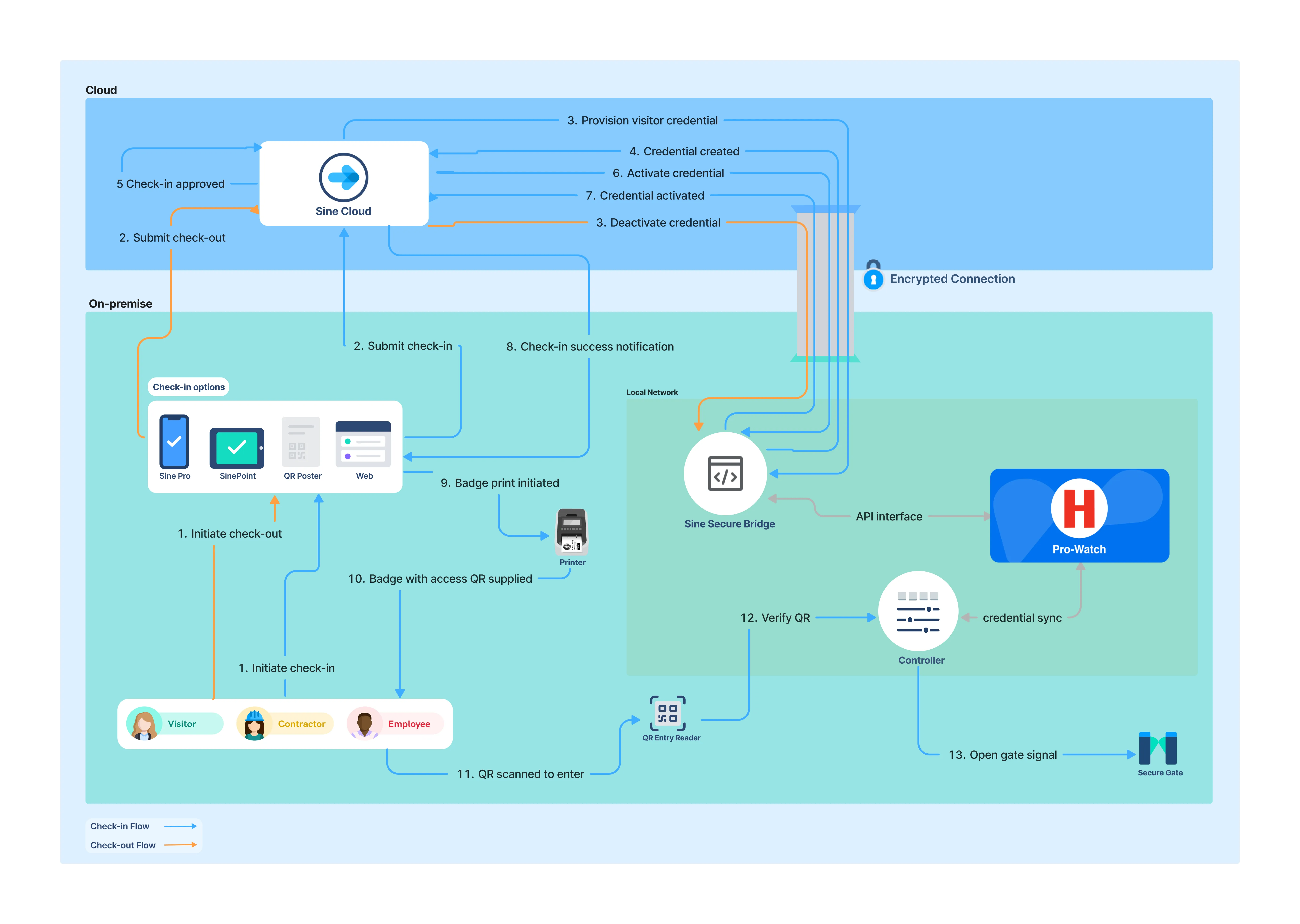
Check-in Flow:
The visitor initiates check-in through Sine, using a kiosk, the mobile app, a web form, or a printed QR poster.
Sine provisions a unique QR code credential, scoped to the visitor's assigned access groups for the duration of their visit.
Once the visit passes security and compliance checks and is approved, Sine activates the QR code credential in Honeywell Pro-Watch.
Sine delivers the QR code to the visitor via SMS or displays it on their printed or digital badge.
The visitor presents the QR code at a reader with QR/barcode scanning support, and the door unlocks upon successful verification.
Check-out Flow:
The visitor checks out through the Sine app or kiosk, by notifying a host, or automatically upon exiting the geofenced area.
Sine revokes the QR code credential in Honeywell Pro-Watch, immediately preventing any further entry attempts using that code.
Requirements
Sine Requirements
- Integration enablement: You need a Sine subscription with the Honeywell Pro-Watch integration enabled. Additional fees may apply.
Honeywell Pro-Watch Requirements
- Pro-Watch server: You need a server and license for Pro-Watch 5.5 or higher.
- API license: You need a license for the Pro-Watch API. This may require an additional purchase, so contact your Honeywell seller to confirm.
- API credentials: You need a Pro-Watch API user, including a username and password.
- QR Reader: If you plan to use QR codes for access, you need compatible QR access readers. Confirm compatible hardware with Honeywell or your Access Control Integration Partner. A reader similar to this is suggested.
- Credential pool: If you plan to use physical access cards, you need an available credential pool.
- Testing environment: You need a sandbox environment or a safe testing space to validate the integration before deploying it to production.
- Network connectivity: Determine how you will connect Sine to your on-premise Pro-Watch system.
- Direct API access: This method requires network firewall access to the Pro-Watch API from outside your network.
- Sine Secure Bridge: This method requires installing the Sine Secure Bridge agent to establish a secure managed tunnel between your on-premise Pro-Watch system and Sine.
Configuration
Honeywell Pro-Watch Configuration
Pro-Watch Configuration
The integration uses several fields from Pro-Watch, which you must configure if you want to use them. These values are added to the credential that is created and assigned to the visitor.
Field mapping
- Clearance codes: The integration assigns a clearance code to the credential.
- Companies: The integration assigns a company to the credential.
- Badge types: The integration can assign a badge type to the badgeholder as well as a badge type to the credential. Custom field mapping
- Visit ID: Sine's unique identifier for the visit.
- Email: The email address the visitor entered upon check-in (if available).
- Mobile: The mobile phone number the visitor entered upon check-in (if available).
Sine Configuration
General Setup
Admin permissions — Ensure you have Team or Site Admin permissions. These permissions are required to configure integrations.
Log in — Log in to the Sine admin dashboard at https://dashboard.sine.co.
Select site — Navigate to the Locations tab and click on the site you want to configure the integration for.
Add integration — In the Site menu, click the Integrations menu item. Click the Add integration button and select Honeywell Pro-Watch from the list of available integrations. If the integration doesn't appear in the list, contact support.
Name integration — Enter a name for the integration. You can use any name, but choose something that helps you identify the integration's purpose.
Connect to Honeywell Pro-Watch
Connection Method
There are two ways to establish network connectivity to your on-premise Honeywell Pro-Watch instance.
Select your preferred method below.
Sine Secure Bridge enables a secure, managed tunnel between Sine Cloud and your on-premise system's API.
Enable Secure Bridge — Switch Use Sine Secure Bridge on to display a dropdown list of your Secure Bridge tunnels. If the Sine Secure Bridge toggle is not visible, contact your Sine representative.
Documentation — For more information on installing and configuring a Sine Secure Bridge tunnel, visit the Secure Bridge Documentation.
Authentication
Credentials — Enter your Honeywell Pro-Watch API User's username and password.
Test Connection — Click the Test connection button to confirm that your configuration is correct. Once you have successfully verified that Sine can connect to your Honeywell Pro-Watch account, the Integration Settings section becomes available.
Integration Settings
Credential Configuration
Controls the type of access control credential that is generated when the integration runs.
Select your preferred credential type below.
Generates and attaches a QR code to a visitor's pass. The integration runs when a pass is created or expired, or when the visitor checks out.
Provision credentials on invitation — By default, the visitor's credentials are provisioned on check-in. If this toggle is enabled, the QR Code provided to the visitor in their invitation email is provisioned in Honeywell Pro-Watch and activated closer to the date of the visitor's invitation start time. This can be used to provide a more seamless experience by provisioning car parking access or access to secure areas prior to the visitor's arrival. Note: if this toggle is enabled and you also want to provision credentials on check-in, you will need to create a separate integration.
Badge number range — Specify the badge number range to use with QR code credentials. Sine randomly generates a new card number for visitors on check-in using the range you provide. The range must be supported by your access control card formats.
Badge Style — Select the style of printed badge that will be printed when this integration is used. Some access control readers may require a specially formatted Access badge style rather than the default name badge style.
Send QR Code by SMS — If the visitor's mobile number is available, send them a QR code credential to their phone. This can serve as a good backup to a badge printer.
Provision credential on check-in — Select one or more visitor types for which you want the integration to provision credentials in your access control system when visitors check in using Sine. It is important to ensure that the Host Selection Required checkbox is ticked for visitor types used in access control integrations. Without this setting, visitors would be provided with access credentials without requiring approval from a host. You can review which of your visitor types have Host Approval Required in the General tab of your site settings.
Grace Period — Sometimes a visitor may use Sine to check out before they leave the location and may still need to use their credentials to exit. You can set a grace period to ensure their access control credentials are not deprovisioned immediately upon being checked out in Sine.

Basic Configuration
Company — Select a company from the Pro-Watch company list to assign to visitors.
Permission group — Select the clearance codes that will be assigned to visitors.
Badge type — Select a badge type to assign to visitors.
Card type — Select a card type to assign to visitor credentials.
Messages
- Visitor failure message — If the access control integration fails for any reason, this message will be displayed to the visitor.
Notifications
- Send integration failure notifications — If the integration fails, you can enter one or more email addresses to be notified of the failures and their corresponding details.
QR Reader Configuration
Configure the readers that visitors will scan their QR code credentials at.
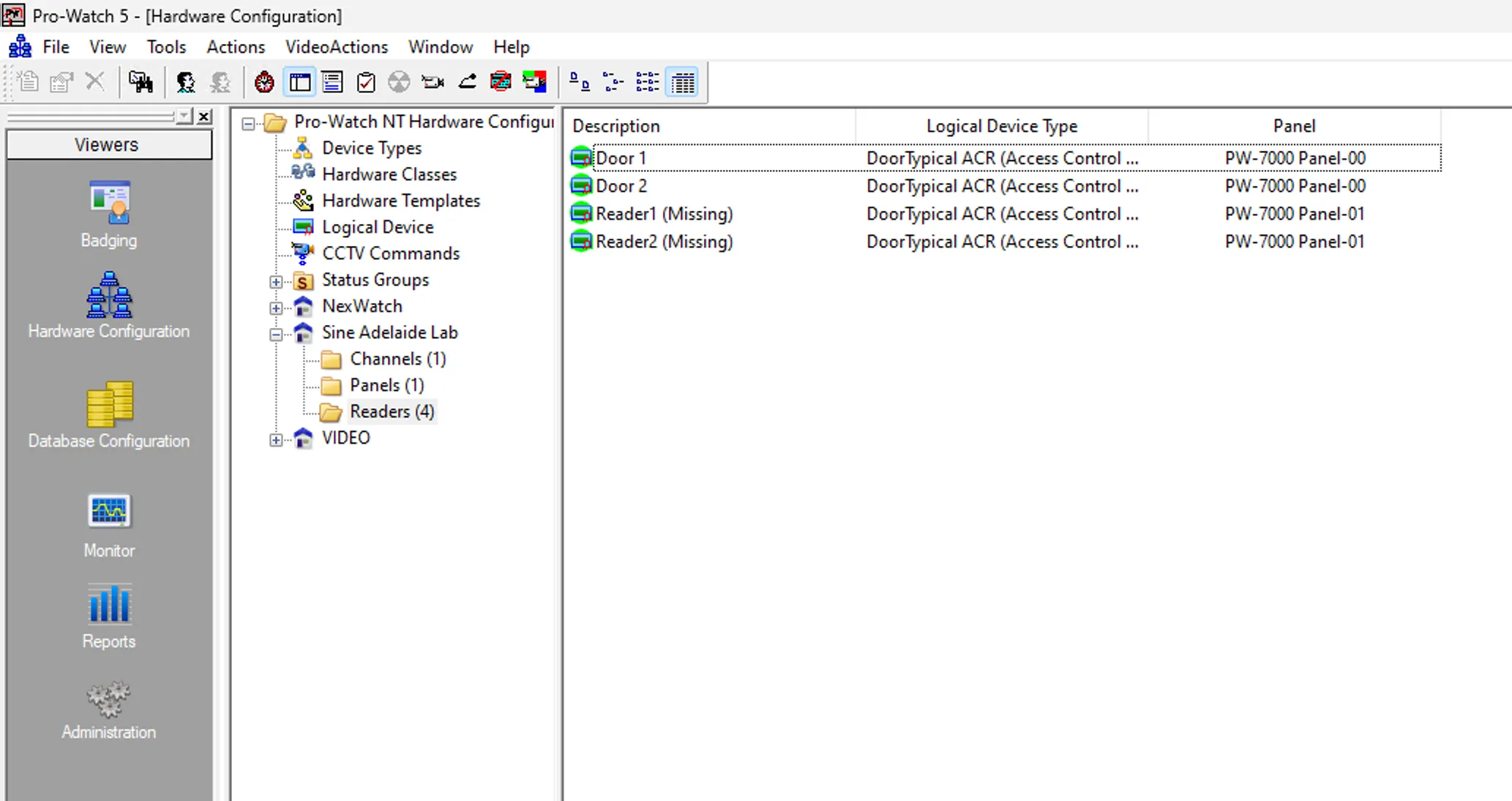
Open Hardware Configuration — Open Pro-Watch on your virtual server, then select Hardware Configuration from the Viewers panel.
Select your readers — Expand your site in the hardware tree (for example, Sine Adelaide Lab) and select Readers to list the readers on that site.
Configure each reader — Select a reader that visitors will use and configure it to accept the QR code credentials issued by Sine.
Troubleshooting
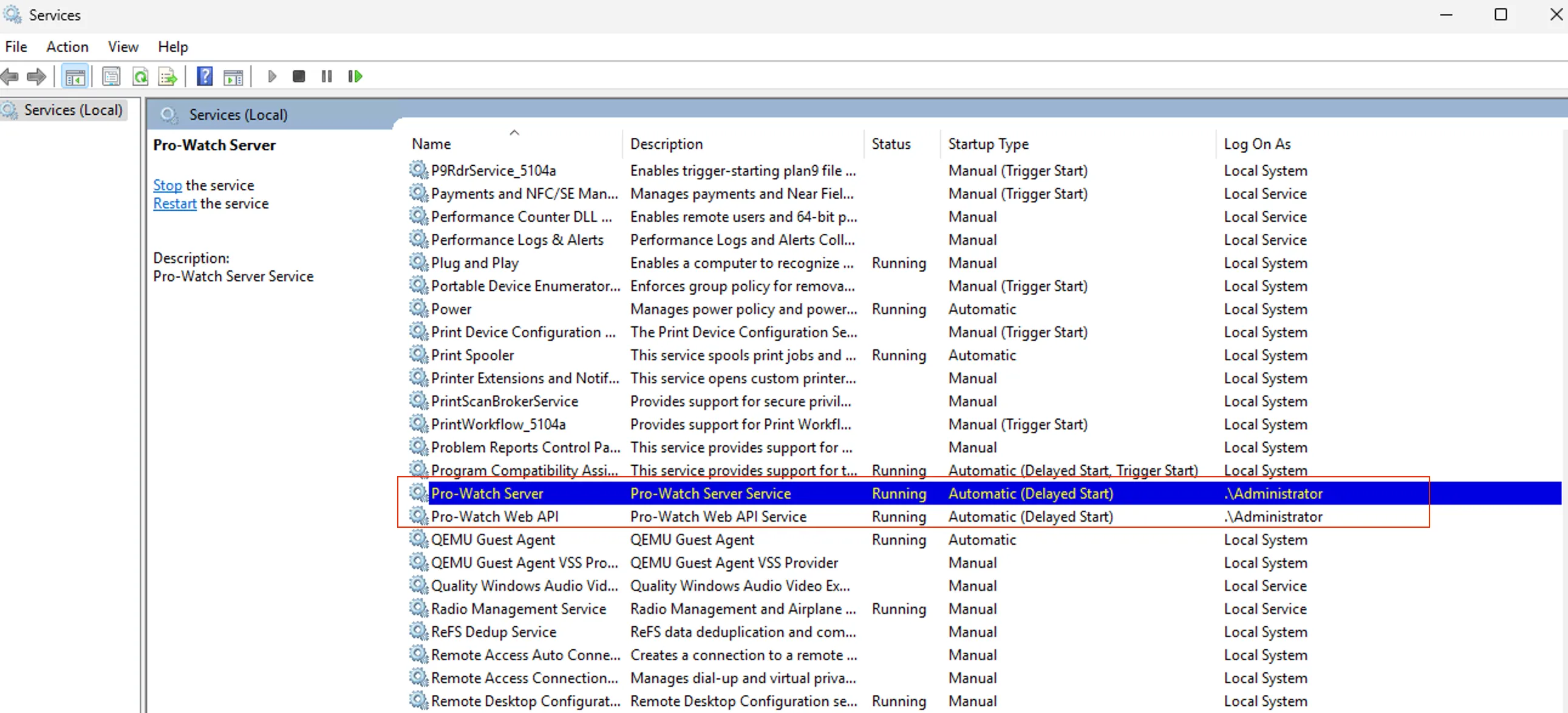
- If the Pro-Watch application fails to open and displays an error, ensure that the Pro-Watch services are running. You can verify this by navigating to Windows Services.
Testing
Create a test check-in — Create a test visitor check-in using a visitor type configured for the integration.
Verify credential provisioning — Verify that the visitor profile is created in the vendor system and that credentials are provisioned correctly.
Test credential access — Test the credential at a compatible reader to ensure access is granted.
Verify credential revocation — Check out the test visitor and verify that access credentials are revoked after the configured grace period.
Check failure notifications — Monitor the integration failure notifications to ensure they are working correctly.
Need help? Contact Sine Support at [email protected]